Juno Migration Process
Before performing the migration, please contact soffico!
Stop All Running Processes
Before making any changes or attempting to update Juno, you must stop all processes within the Juno environment. It is recommended to create a backup of all involved data.
-
Stop all inbound channels and timers, and wait until Juno has finished processing all running processes.
-
Check the Orchestra monitor to ensure there are no processes in the 'running,' 'warning,' or 'paused' states.
-
Stop the Juno runtime.
You cannot share Derby DB files among multiple JVMs. The first JVM to create or connect to an existing Derby database will lock the DB files exclusively to prevent data corruption. Therefore, you should embed the database into a single application that resides in one JVM (Juno uses this option by default).
Check Processes in Database Tables
Use a universal database tool like DBeaver or Squirrel SQL to check the following:
-
Check for running processes in
orc_process_state. The numbers in the following statement have the following meanings:- RUNNING = 18
- WARNING = 10
- PAUSED = 2
SELECT * FROM orc_process_state WHERE prs_state IN (18, 10, 2);If there are entries here, these are still ongoing processes! Restart the Juno runtime and check the first and second steps:
- Stop all inbound channels and timers, and wait until Juno has processed all running processes.
- According to the monitor, there should no longer be any 'running,' 'warning,' or 'paused' processes.
-
Check for running processes in
orc_process_runtime_state:- RUNNING = 0
- CANDIDATE_FOR_RESTART = 4
- MARK_FOR_RESTART = 3
- SCHEDULED_FOR_RESTART = 4
SELECT * FROM orc_process_runtime_state WHERE prs_state IN (0, 2, 3, 4); -
Check for running processes in
orc_processinstance_state. If there are entries here, there are still persistent processes.SELECT count(*) FROM orc_processinstance_state; -
Check the
orc_work_queuetable.SELECT count(*) FROM orc_work_queue; -
Check the
orc_topic_queuetable. TheCREATEDATcolumn can be used to determine how old an entry is. If entries are older than 1 hour, delete them. Entries with status -1 and -9 can also be deleted via SQL.SELECT count(*) FROM orc_topic_queue WHERE state <> -9;
Transfer Necessary Files and Replace Existing Version with Update
-
Create a backup copy of
junoartifactand rename it tojunoartifact_old. Optionally, compress it toJunoartifact_old.zip. -
Replace directories as follows:
| Installation Mode | Directory Path | FROM | TO | Step |
|---|---|---|---|---|
| STANDALONE & CELL | ~\junoartifact\base\licensestore | existing | new | Move directory licensestore\ from existing version to new version. |
| CELL only | ~\junoartifact\base\classes\config\junosettings.txt | existing | new | Move file junosettings.txt from existing version to new version. |
| STANDALONE & CELL | ~\junoartifact\base | new | existing | Replace directory base\ in existing version with directory from new version. |
-
Set read/write/execute permissions on
licensestorefor the Juno runtime user:Linux:
chown -R <juno runtime user>:<juno runtime group> licensestore
Upgrade Derby Database via Flyway
-
Configure Flyway for upgrading the Juno database. It is recommended to use Flyway version 6.x.x.
-
Copy the Derby driver from
~\junoartifact\base\lib\derby-10.14.2.0.jarto~\flyway\drivers(if not already available). -
Copy all Derby SQL scripts to
~\flyway\sqldirectory. -
Flyway maintains a dedicated table -
schema_version(Flyway 5) orschema_version_history(Flyway 6) - to manage migration tasks. This table will exist alongside other tables that come with Juno. -
If using Flyway 5, adapt the following line in the configuration file:
flyway.table=flyway_schema_history- Open and configure
~\flyway\conf\flyway.toml.example:
Configuration Argument Description locations=filesystem:~\Flyway\sql\Derby Relative path where the SQL scripts are located for migration (new version of Juno) password=ORCHESTRA Password used to connect to the database url=jdbc:derby: <C:\junoartifact\database>URL of the database to be used user=ORCHESTRA Username for connecting to the database validateOnMigrate=false Setting this to false can prevent issues with different Flyway versions. Default is true. -
-
After configuring Flyway, enter the following commands:
-
flyway infoChecks the scripts in the Flyway directory against the Derby database and outputs a summary table, structured as follows:
version script name + upgrade Date and time of installation Success / Pending / Missing <number> <script name> <installation date> <status> There should be one or more versions marked as pending; the rest should be in a success state. The pending ones indicate updates Flyway will perform in the next step.
-
flyway migrateThis option applies only if you previously used Flyway for the Juno DB (e.g., with version 4.8.x.x).
dangerNever attempt to use
flyway clean migrateorflyway clean, as this will delete all records (processes, logs, etc.) in the database! -
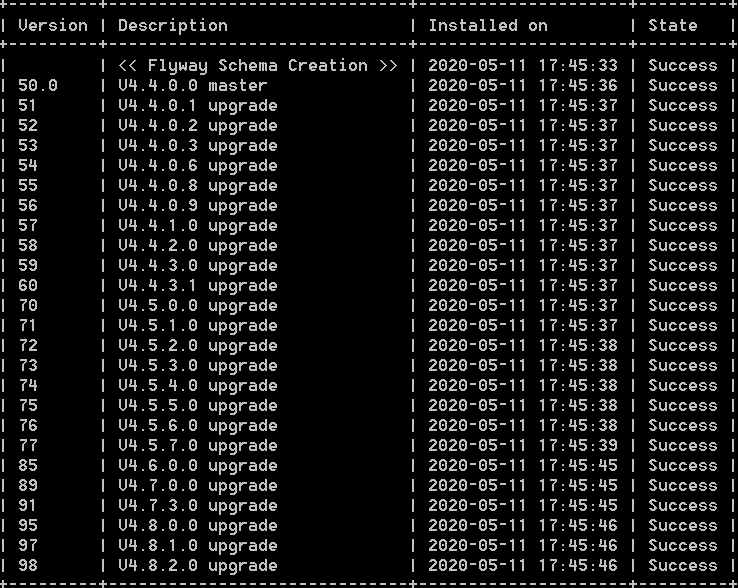
flyway infoCheck if all scripts have been successfully migrated:
Adapt Configuration for Environment and Logging
| Directory Path | Description |
|---|---|
| ~\junoartifact\base\classes\config\environment_settings.xml | Migrate all configurations from the old version and set them in the new version. |
| ~\junoartifact\base\classes\logging.properties | If the default configuration has been modified, migrate all configurations from the old version to the new version; otherwise, skip this step. |
Testing Upgraded Juno
-
Start Orchestra.
-
Check the status of the runtime in the Orchestra monitor.
-
Restart all inbound channels.